.svg)
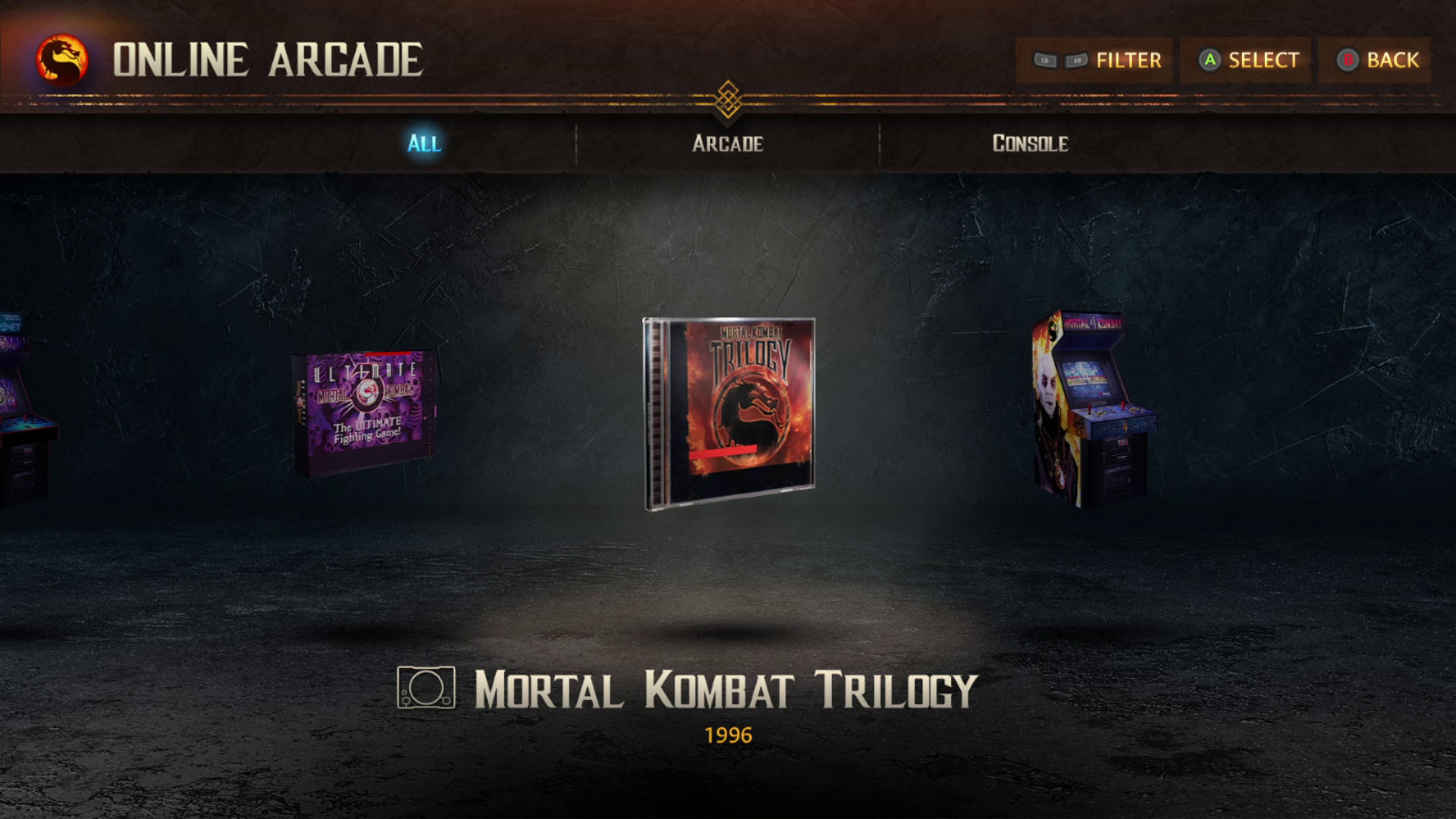
With today's update, Mortal Kombat: Legacy Kollection now supports displays that allow for variable refresh rate, or VRR.
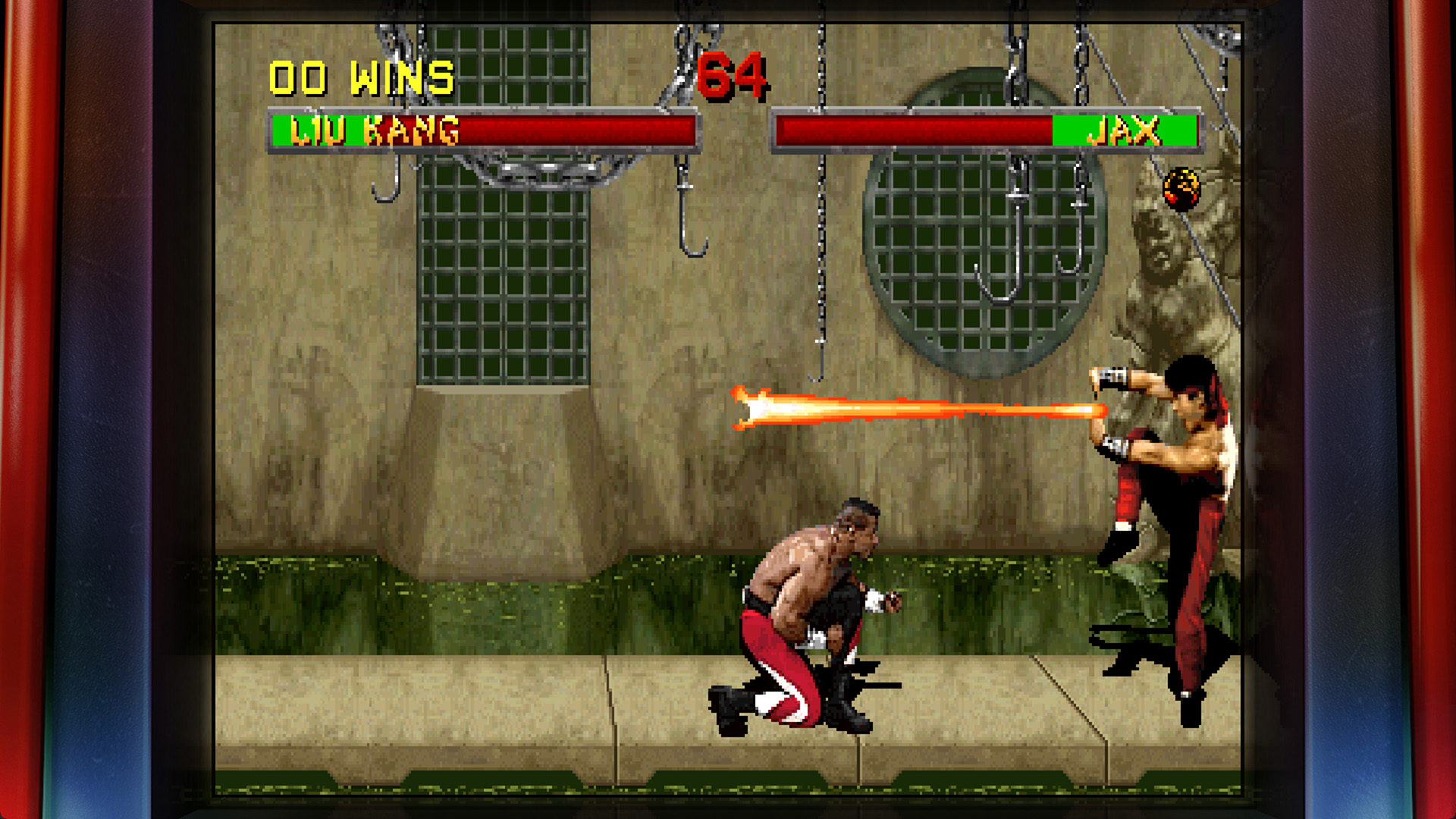
Put simply, televisions and monitors with VRR can display games with non-standard framerates. Since the original Mortal Kombat arcade games ran at around 54 frames per second instead of the standard 60 FPS, VRR can give you a Mortal Kombat experience that's that much closer to the authentic arcade feel.
That said, it's not as simple as flipping a switch. All three components of your setup need to support VRR: your console or PC, your TV or monitor, and even the video cable that connects them. If all three parts are compatible, you may still need to check in your console's and TV's settings and menus to make sure VRR is enabled.
MKLK supports VRR on these platforms:
- PlayStation 5
- Xbox Series X and Series S
- Xbox One X and Xbox One S (note: not the original Xbox One)
- PC
- Nintendo Switch 2 (in handheld mode only).
If you aren't playing on one of these systems, then your platform does not support VRR. If your platform does support it, your monitor and cable need to support it, too.
Here's how to find out if the rest of your gear supports variable refresh rates, and how to enable it on your game machine of choice.
DISPLAY
Find the model number of your monitor or TV (usually on a label on the back of your display) and look for details in your owner's manual or on the manufacturer's website to see if it supports VRR. If it does, you may need to turn VRR on within the TV or monitor's menus.
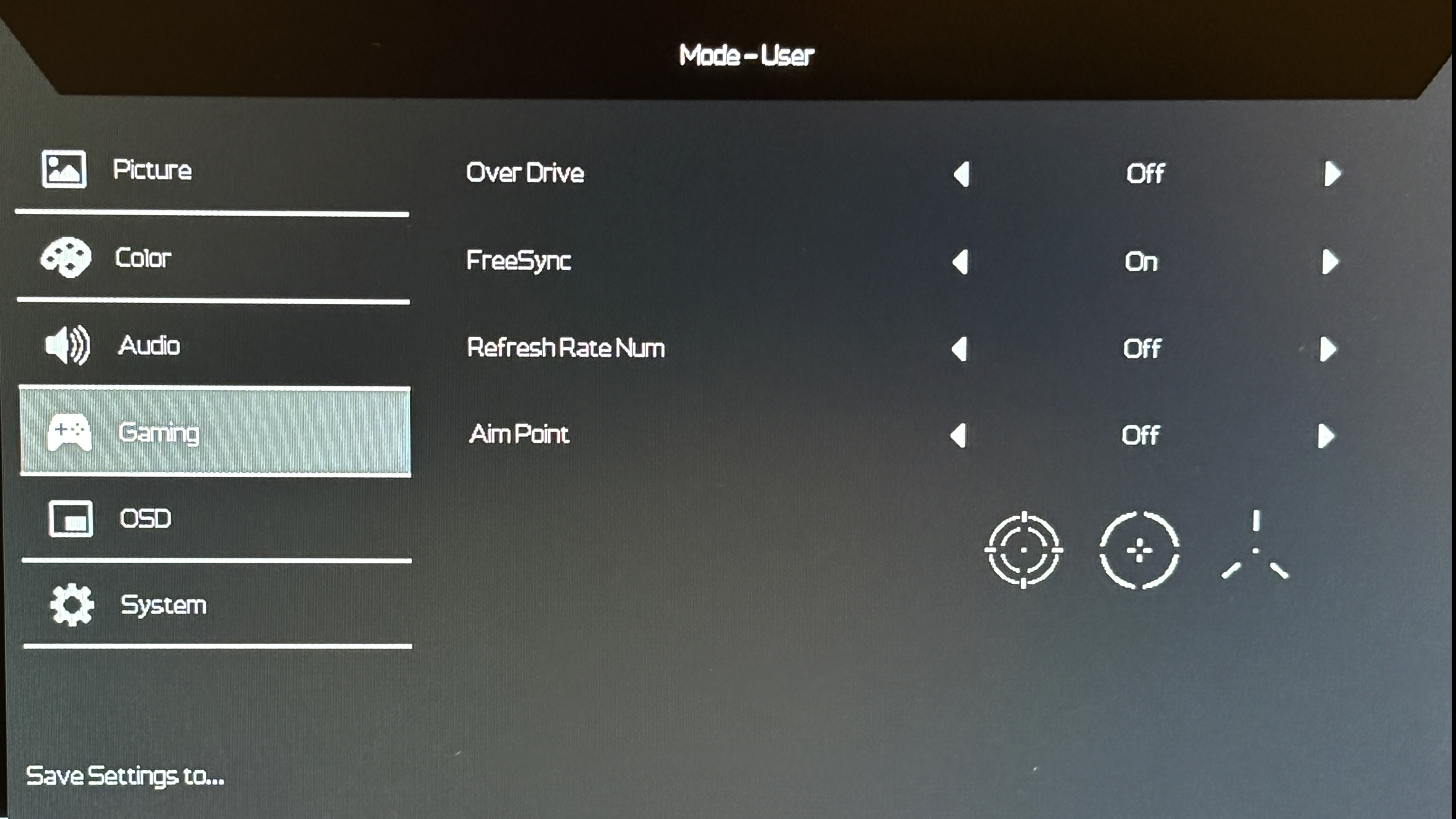
On PC, different manufacturers call their VRR technologies by different names. If you're running an NVIDIA card, look for displays that support G-SYNC; if you're running an AMD card, you want one certified for FreeSync. Again, if you're not sure what you have, look up the model number online and check with the manufacturer, but those links will take you to each graphics card's page about their tech, which should help.
This Xbox Wire post notes that Xbox One S & X work with FreeSync monitors, too.
CABLE
On consoles, it's recommended to use an HDMI 2.1 cable ("Ultra High Speed HDMI") or better. (You might find that a 2.0 cable works on Xbox and PC, but 2.1 is recommended, and it's required for VRR on PS5.)
Unfortunately, HDMI cables aren't always marked to easily tell the difference between generations. If in doubt, use the cable that came with your hardware, or seek out a new cable that specifically states that it's built for Ultra High Speed. There's some more info on how to determine this here.
On PC, you can also use most DisplayPort cables. Version 1.2a or better will support VRR, and the current standard is 2.1b, so there are a lot of compatible cables out there.
GAMING HARDWARE
Nintendo Switch 2
Nintendo Switch 2 supports VRR without having to adjust any settings, but only in handheld mode (that is, not when docked to an external display). Once you've applied the latest MKLK update, you don't need to do anything else to enjoy the increased accuracy of VRR.
PlayStation 5
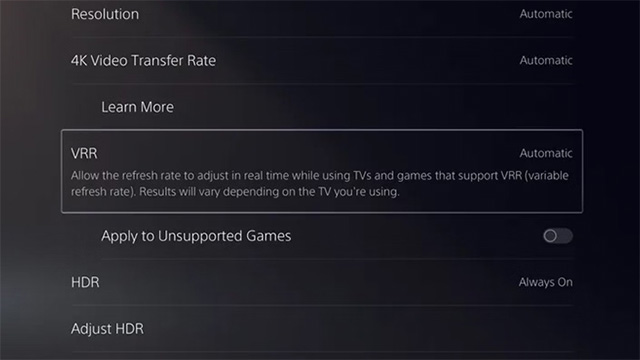
To enable VRR on PS5, go to Settings, select Screen and Video, select Video Output, and set VRR to Automatic. Remember that you must be using an Ultra High Speed HDMI 2.1 cable (included in the PS5 box) to connect to your VRR-compatible display.
Xbox Series S|X and Xbox One S|X
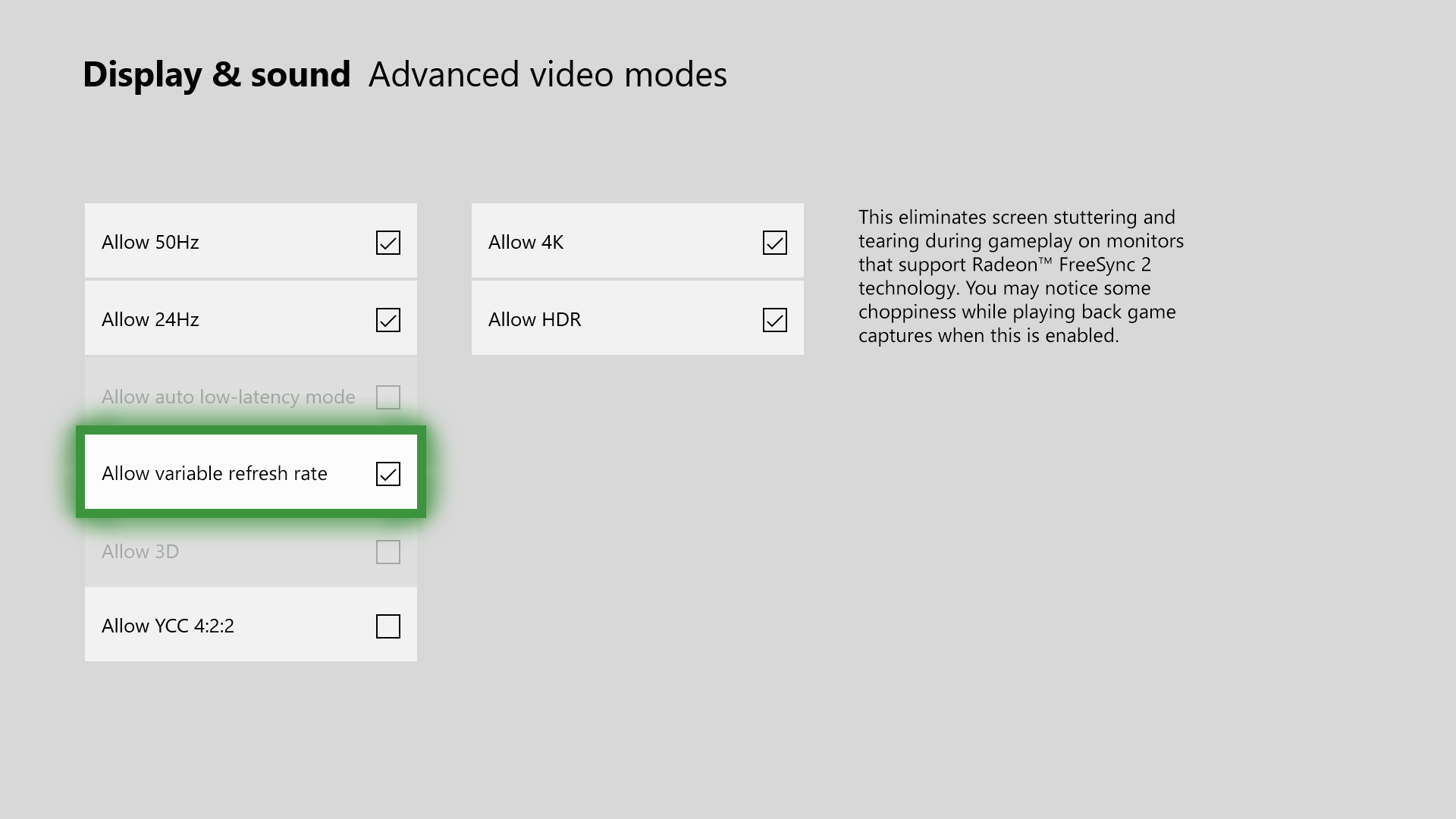
To enable VRR on Xbox consoles, go to Settings, select General, select TV & Display Options, select Video Modes, and check the box for Allow Variable Refresh Rate.
On Xbox Series machines, you'll be offered some additional options, and it's safe to choose Gaming Only.
PC
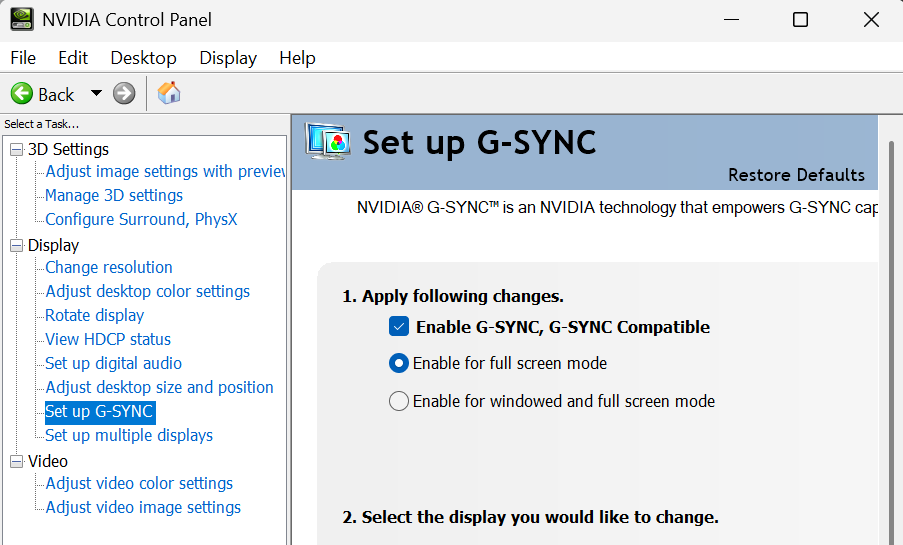
In NVIDIA's Control Panel, go to Display and select Set up G-SYNC.
The process is similar in AMD's Adrenalin software: Select Gaming, then Display, and make sure FreeSync is on.
If any of these menus don't let you select VRR or you don't see these terms listed as options, then there's a good chance one of the other items in your setup is not compatible.


.png)